- App blockers
- Guides
Does Apple Screen Time Actually Work? The Design Flaw Nobody Mentions
Screen Time was built as a parental control, not a self-control tool — and that one design decision explains why 'Ignore Limit' beats you every time.
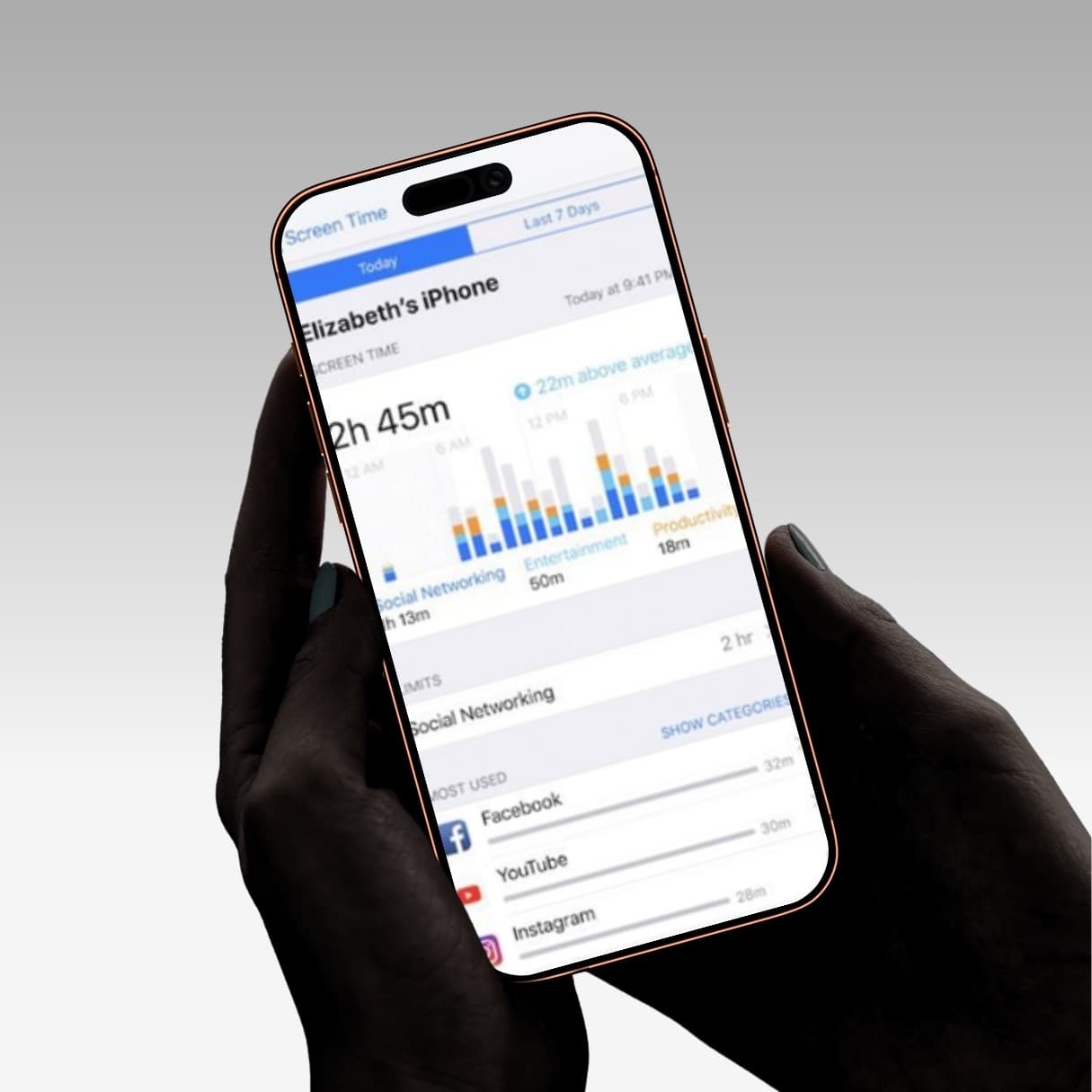
You set a one-hour Instagram limit. You meant it.
Three days later the grey overlay appears, you tap "Ignore Limit for Today" without breaking eye contact with the screen, and you keep scrolling. Total elapsed time: one second.
You've concluded that you lack discipline. I'd like to propose a different explanation, because there's a specific design decision behind Screen Time that explains its failure completely — and once you see it, the fix becomes obvious.
Short answer: Screen Time works exactly as designed. It just wasn't designed for you.
Screen Time is a parental control, not a self-control tool
This is the thing almost nobody says out loud.
Apple shipped Screen Time in iOS 12 as a parental feature. Every design decision in it reflects that origin. It assumes a two-party system: one person sets the rules and holds the passcode, and a different person lives under those rules.
In that arrangement, the "Ignore Limit" button is perfectly sensible. The child hits a wall, has a legitimate reason, asks the parent, and the parent decides. There's an independent authority in the loop.
Now put yourself in it. You set the rule. You hold the passcode. You are also the person hitting the wall.
You are both the parent and the child. And the version of you that meets the limit at 11pm has full administrative rights over the rules the calm, well-rested version of you set on Sunday afternoon.
That isn't a willpower failure. It's a permissions failure. You gave root access to the exact person the system was supposed to restrict.
The one setting that makes it meaningfully better
Before writing Screen Time off entirely, there's a toggle most people have never found, and it's genuinely worth ten minutes.
"Block at End of Limit."
By default, hitting an app limit gives you the "Ignore Limit" escape. Turning this on removes that option and requires the Screen Time passcode instead. The catch is that the toggle only appears if you've set a Screen Time passcode first — which is why so many people have never seen it.
To find it:
- Settings → Screen Time
- Tap "Lock Screen Time Settings" and set a passcode
- Go to App Limits, select the limit you want to enforce
- Toggle on Block at End of Limit
This converts Screen Time from a suggestion into something with actual teeth. Note that recent iOS versions still allow a "One More Minute" extension once per day as a system-level safety feature, which you can't remove.
But here's the problem you've probably already spotted: you still know the passcode. You've upgraded from a one-tap bypass to a four-tap bypass. That's real friction and it will stop you some of the time — genuinely, it's better than nothing — but you remain both the lock and the key.
The fix that actually resolves the design flaw
If the flaw is that you're both parties, the fix is to stop being both parties.
Give the passcode to someone else and don't learn it.
Your partner, a housemate, a friend, a sibling. Set your limits, hand over the code, and delete it from your own memory. You've now restored the two-party system Apple actually designed the feature around — and it costs nothing.
This is, structurally, exactly what a $59 blocking device sells you. The pitch for a Brick or a Bloom is "the unlock key doesn't live on your phone." Handing your passcode to another human achieves the identical thing with a piece of hardware you already own.
Almost nobody does it. The barrier isn't technical — it's that you have to say out loud to another person that you can't manage this by yourself. That admission is the actual price, and it's higher than $59 for most people.
Where Screen Time is genuinely leaky
Even with Block at End of Limit enabled, Screen Time has real gaps. I'm not going to write a tutorial on defeating it, but you should know the categories exist so you can plan around them:
The web version. Screen Time can block the Instagram app while instagram.com remains perfectly reachable in Safari. Blocking apps and blocking behaviour are not the same thing. You can partially close this under Content & Privacy Restrictions → Web Content, but it's fiddly.
Reinstalls. Removing and reinstalling an app can disturb its accumulated limit data.
System-level resets. A factory reset removes Screen Time entirely, and settings changes can create brief windows.
Always Allowed. If an app is on your Always Allowed list, it overrides your limits completely. Check this list — people often forget what's on it and then wonder why the block isn't holding.
None of these matter if you're not actively trying to defeat the system. All of them matter enormously if you are, and at 11pm you might be.
So does it work? An honest verdict
Screen Time works if:
- Someone else holds the passcode. This is the only configuration where it reliably holds.
- You genuinely only need a nudge, not a wall. Some people really do stop when they see the overlay.
- You're a parent using it as intended, on someone else's device.
Screen Time does not work if:
- You hold your own passcode and your problem is compulsive rather than absent-minded.
- Your usage is concentrated in a moment of low self-control — late at night, or in the first minutes after waking.
- You're technically inclined and enjoy defeating systems.
It's still worth two weeks of your time, because it's free and already installed, and you'll learn something either way. If you set it up properly with Block at End of Limit and still watch yourself bypass it daily, that's genuinely useful information: you now know you need external enforcement, not a better rule.
What external enforcement looks like
Once you've established that self-held limits don't hold, there are three real options:
Hand over the passcode. Free. Most effective. Requires a conversation.
Buy a physical blocker. A Brick, Bloom, or Locked tag — an NFC device you leave in another room, $39–59 once, no subscription. The key genuinely isn't in your hands. Best option if your problem runs across the whole day. What the long-term reviewers found.
Use something that requires physical action instead of a passcode. This is what I built Rise for, so read with appropriate scepticism: your chosen apps stay locked during your wake-up window until you've walked 100 steps or photographed a real object across the room. There's no passcode to know, because there's no passcode — the unlock is a physical act, which sidesteps the both-parties problem entirely. It's a subscription with a free trial, and there's no account and no ads. See the two unlock methods.
The honest limits: iPhone only, mornings only, and you can uninstall it. If you're scrolling all day, buy the hardware.
Start your free trial of Rise →
The takeaway
Screen Time isn't broken and you aren't undisciplined. You've been using a two-party tool as a one-party tool, and it does not have the design to survive that.
Either add the second party — a person, or a physical object in another room — or accept that what you've built is a reminder rather than a limit. Both are fine. Just be clear which one you have, so you stop being surprised when the reminder doesn't hold.
For the wider picture of why mornings specifically defeat every self-imposed rule, see why you scroll in bed. For the full list of fixes ranked by effort, see how to stop scrolling in bed.
Settings paths accurate for current iOS at time of writing; Apple changes these between releases. I build Rise, a subscription morning app blocker, mentioned above.
Frequently asked questions
Why doesn't Screen Time stop me from using apps?
Screen Time was designed as a parental control, where one person holds the passcode and a different person is restricted. When you use it on yourself, you hold your own passcode, so the version of you hitting a limit at 11pm can simply tap 'Ignore Limit' and override the version of you who set the rule.
What does Block at End of Limit do in Screen Time?
It's a toggle that removes the 'Ignore Limit' escape hatch and requires your Screen Time passcode instead. It only appears once you've set a Screen Time passcode, under App Limits for the specific limit you want to enforce. It's stronger than the default, but if you know your own passcode you can still get through it.
How do I make Screen Time actually enforce a limit?
Give your Screen Time passcode to someone else and don't learn it yourself. That restores the two-party system Apple designed the feature around, and it's structurally the same thing a paid blocking device sells you — the unlock key just doesn't live in your hands.