- Mornings
- Guides
How to Stop Scrolling in Bed: Every Method That Works, Ranked by Effort
Six real methods to stop scrolling in bed, ranked from charging your phone in another room to buying hardware — with the honest failure mode of each.
You already know you shouldn't. That's not the problem.
The problem is that at 6:47am, knowing isn't available to you. Your hand has already moved. This guide is about arranging your mornings so that knowing isn't required.
Below is every method that genuinely works, ordered from least to most effort, with the honest failure mode of each. Most people need two of these, not one.
If you want the underlying explanation of why mornings are uniquely hard, I've written that separately: why you scroll in bed every morning. This guide is the practical version.
Start here: which problem do you actually have?
Before you try anything, work out which of these describes you. The right fix is completely different for each.
A. You wake up and lose 20–60 minutes before standing up. Your scrolling is concentrated in one window. This is the most common pattern by a wide margin, and it's the easiest to fix.
B. You scroll all day and the morning is just where it starts. You need all-day enforcement. Some of what follows will help; you'll probably also want hardware.
C. Your phone is fine but your laptop eats your evenings. Nothing in this guide will help. You want a cross-device blocker like Freedom.
Most people assume they're B and turn out to be A. It's worth testing that assumption before spending money, because A can be solved for nothing.
The methods, ranked by effort
1. Charge your phone in another room
Effort: One purchase, one habit change. Effectiveness: Highest of anything here. Undefeated.
Buy a cheap alarm clock. Charge the phone in the kitchen. The habit loop cannot fire if the cue isn't within arm's reach.
Why it fails: Most people won't do it, and there's no point pretending otherwise. You may need the phone for emergencies, for a partner's schedule, or for an alarm you actually trust. If you have a legitimate reason, skip to the methods below — they exist precisely because this one is hard to adopt.
If you can do it, do it. Everything else on this list is a workaround for people who can't.
2. Move the apps off your home screen
Effort: Two minutes, once. Effectiveness: Low on its own, decent in combination.
Delete the icons from your home screen so the apps are only reachable through search. Each additional tap reduces the chance the automatic sequence completes.
Why it fails: Muscle memory rebuilds within a week. Swiping down and typing "ins" becomes as automatic as the tap it replaced.
Use it as: a supplement to something stronger, not a solution.
3. Give your Screen Time passcode to someone else
Effort: One awkward conversation. Effectiveness: Genuinely high. Massively underused.
This is the best free method almost nobody tries.
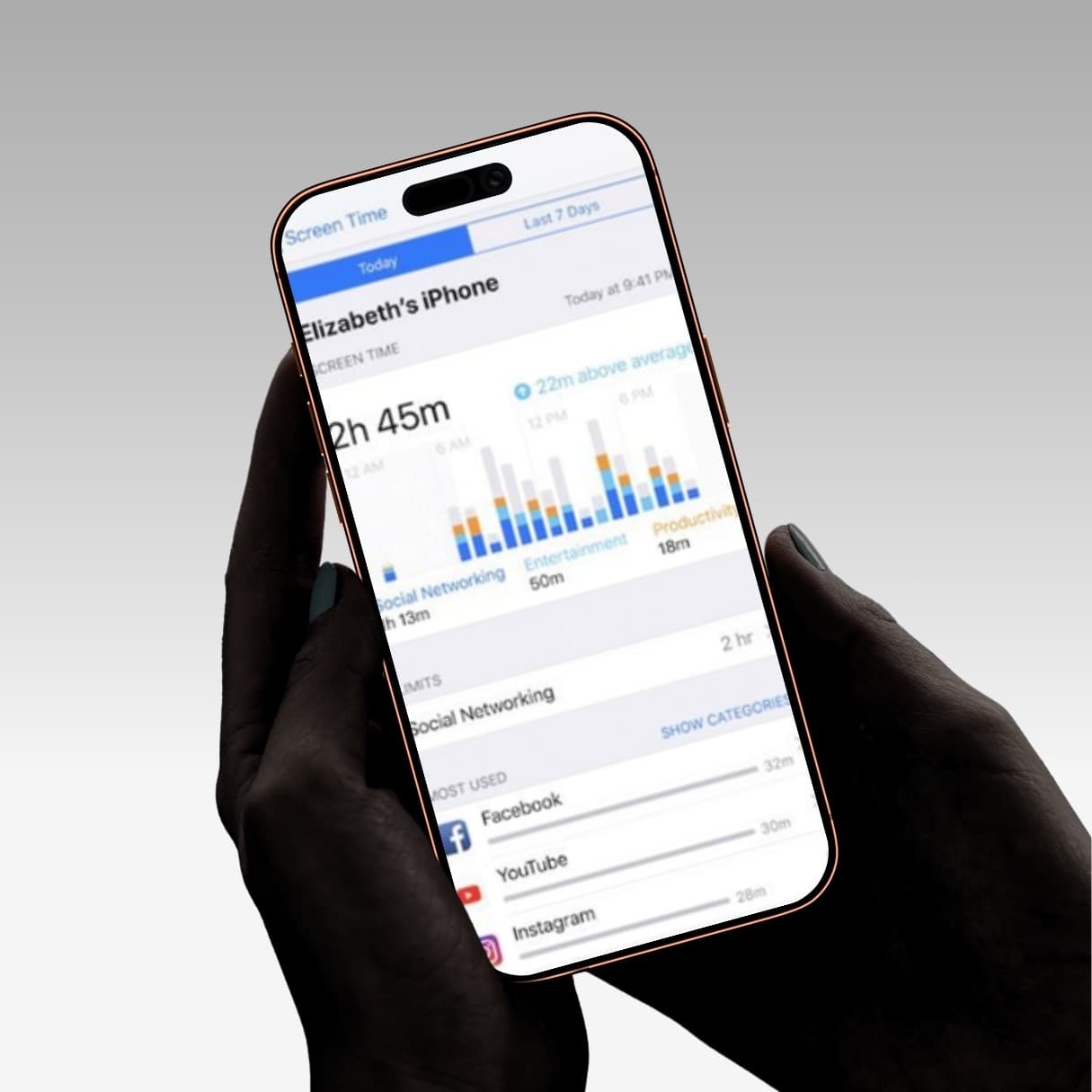
Apple's Screen Time was designed as a parental control — a two-party system where one person holds the key and a different person is restricted. When you use it on yourself, you're both parties, which is why it fails. Hand the passcode to your partner, housemate, or a friend, and don't learn it. You've restored the two-party design Apple actually built.
Structurally, this is the same thing a $59 blocking device sells you: the key isn't in your hands.
Why it fails: It requires saying out loud to another person that you can't manage this alone. That's the entire barrier, and it stops most people. It also puts a mild burden on them.
More on why Screen Time fails by default, and the one setting that makes it meaningfully stronger: does Apple Screen Time actually work?
4. Log out and destroy the password
Effort: Ten minutes, once. Effectiveness: High for a specific app.
Delete the app, log out of every session, then generate a long random password and store it somewhere genuinely inconvenient — a paper envelope in a drawer, a friend's phone, a password manager you can only open on a laptop.
Getting back into Instagram at 6:47am now requires a multi-step retrieval process, which is functionally the same friction as walking to another room.
Why it fails: It's binary. You can't use the app at all, including at times you legitimately want to. Most people abandon it around the third re-entry.
5. Use an app that requires physical movement
Effort: Three minutes to set up. Effectiveness: High for problem A specifically.
The principle behind every paid blocking device is that you should have to move before you get access. That principle doesn't actually require hardware — your phone already has motion sensors and a camera.
This is what I built Rise to do, so weigh it accordingly. Your chosen apps stay locked during your wake-up window. To unlock, you walk 100 steps, or photograph a real object across the room — your toothbrush, the kettle, the front door. You cannot walk 100 steps lying down, which is the whole mechanic. By the time your feed loads you're upright and moving, which also happens to be the fastest way to clear morning grogginess. See the two unlock methods.
It's a subscription with a free trial, and there's no account and no ads.
Why it fails: It's iPhone-only, it covers your wake-up window rather than the whole day, and you can uninstall it if you're determined. It's friction, not a prison. If you're problem B, this won't be enough on its own.
Start your free trial of Rise →
6. Buy a physical blocking device
Effort: $39–59 and a week of shipping. Effectiveness: Highest of the paid options for problem B.
An NFC tag — Brick, Bloom, or Locked — that you leave in another room. Your chosen apps stay blocked until you physically walk to the tag and tap your phone against it. No battery, no subscription, one-time purchase.
This is the strongest consumer-grade enforcement available, and if your scrolling genuinely runs all day it's worth the money.
Why it fails: It only works if you actually leave the tag somewhere inconvenient. People who keep the puck in their pocket have bought a $59 keyring. It also does nothing for your laptop, and there are documented ways around the block through a browser.
Full breakdown of what the long-term reviewers found: does Brick actually work? · Side-by-side pricing: Brick vs Bloom vs Locked
What to do tonight
If you want a concrete plan rather than a menu:
If you're problem A (the morning is the problem):
- Set up a movement-based blocker tonight — three minutes.
- Move the offending apps off your home screen while you're at it.
- Run it for one week. Notice what's left.
If the mornings resolve and the rest of your day is fine, you're done — and you'll know before the trial is up.
If you're problem B (all day):
- Do the above anyway, as a first test.
- If after a week you're still scrolling at 3pm, you have genuine all-day trouble — buy a physical blocker. Compare them here before you spend.
If you're problem C (laptop): get Freedom, and stop reading morning-routine articles.
What doesn't work, so you can stop trying
Willpower. Not because you're weak. Because the brain system that supplies willpower is still booting for 15–60 minutes after you wake, and the phone reach is an automatic sequence that fires before that system is online. You are asking for a tool that isn't in the room yet.
Grayscale mode. Affects your whole phone, including things you want in colour, and it's three taps to undo.
Screen time limits you control yourself. One tap on "Ignore Limit" and you're through. See method 3 for the version that works.
Deleting the app. Reinstalling takes eleven seconds and you're still logged in.
Resolving to want it less. Nobody has ever succeeded at this. Put the biscuits on a higher shelf instead.
The one thing worth internalising
Every method on this list that actually works does the same thing: it puts a physical action between waking and unlocking.
Walking to the kitchen. Walking to a tag. Walking 100 steps. Retrieving a password from an envelope. Asking another human for a code.
That's the whole principle, and it's why "just don't check your phone" has never worked for anyone. You're not trying to become the sort of person who resists the cue. You're trying to arrange things so the cue can't complete.
Pick one. Set it up tonight. Tomorrow morning can run differently — not because you'll want it more than you did last night, but because wanting it won't be the deciding factor any more.
Related reading: why you scroll in bed · does Apple Screen Time work? · free alternatives to Brick
I build Rise, a subscription morning app blocker for iPhone, which is method 5 above.
Frequently asked questions
What's the easiest way to stop scrolling in bed?
Charging your phone in another room and buying a cheap alarm clock is the single most effective method and it's free, but most people won't do it. The next best options — giving someone else your Screen Time passcode, or using an app that requires you to physically move before unlocking — work almost as well without giving up having the phone in the room.
Does giving someone else my Screen Time passcode actually work?
Yes, and it's the most underused free method. Screen Time was designed as a two-party system where one person holds the passcode and a different person is restricted. Handing your passcode to a partner or housemate and not learning it restores that design, which is structurally the same thing a paid blocking device sells you.
Do I need to buy hardware to stop scrolling in bed?
Only if your scrolling problem runs all day rather than being concentrated in the morning. A physical NFC blocker like Brick or Bloom is the strongest option for all-day enforcement, but most people who test a morning-only method for a week first find the morning was the whole problem.